> ## Documentation Index
> Fetch the complete documentation index at: https://developers.podero.com/llms.txt
> Use this file to discover all available pages before exploring further.
# Authentication
> OAuth2 Client Credentials flow for server-to-server authentication
# Server-to-Server Authentication
The Partner API uses the **OAuth2 Client Credentials flow** for secure server-to-server communication.
For server-to-server communication, this API uses the OAuth2 Client Credentials flow. Please feel free to contact your account manager to receive your initial admin username and password.
## Prerequisites
Contact your account manager to receive your initial admin username and password.
Log in at [https://app.podero.com/accounts/login/](https://app.podero.com/accounts/login/) (or use your sandbox URL subdomain).
Please make sure you change your password after your first login.
## Register a New Application
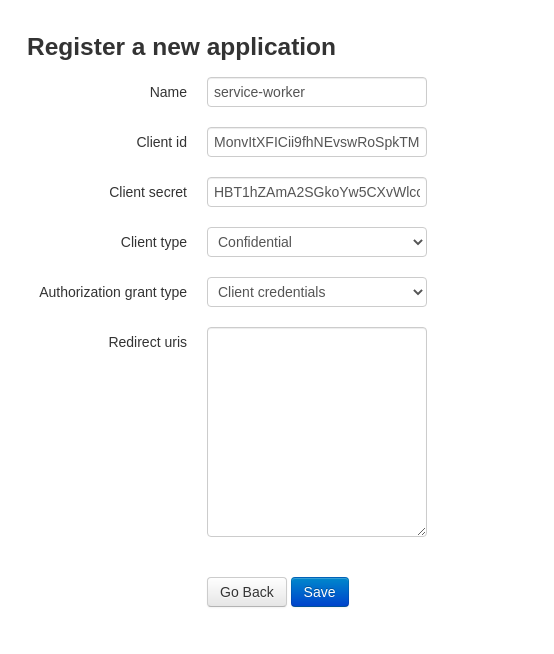
Visit [https://app.podero.com/oauth2/applications/register/](https://app.podero.com/oauth2/applications/register/) (or use your sandbox URL subdomain) to create a new client application.
Fill in the application details:
* **Name:** Your application name
* **Client Type:** Select **Confidential**
* **Authorization Grant Type:** Select **Client Credentials**
* **Redirect URIs:** Not necessary (leave empty)
**Immediately copy the client ID and the client secret and keep them somewhere safe.** You will not be able to retrieve your client secret later.
Save the application after copying your credentials.
 ## Generating an Access Token
To get an access token and to be able to use the API, you need to make a request to the token endpoint with a Basic Auth header using your base64 encoded client ID and secret.
You may need to use a base64 encoder tool to get the encoded string. For example, DevToys is a useful tool for this purpose.
### Request
```bash cURL theme={null}
curl -X POST 'https://app.podero.com/oauth2/token/' \
-H 'Authorization: Basic base64_encode(client_id:client_secret)' \
-H 'Cache-Control: no-cache' \
-H 'Content-Type: application/json' \
-d '{
"grant_type": "client_credentials"
}'
```
```python Python theme={null}
import requests
import base64
# Encode credentials
credentials = f"{client_id}:{client_secret}"
encoded = base64.b64encode(credentials.encode()).decode()
# Request access token
response = requests.post(
'https://app.podero.com/oauth2/token/',
headers={
'Authorization': f'Basic {encoded}',
'Cache-Control': 'no-cache',
'Content-Type': 'application/json'
},
json={'grant_type': 'client_credentials'}
)
token_data = response.json()
access_token = token_data['access_token']
```
```javascript JavaScript theme={null}
const clientId = 'your_client_id';
const clientSecret = 'your_client_secret';
// Encode credentials
const credentials = btoa(`${clientId}:${clientSecret}`);
// Request access token
const response = await fetch('https://app.podero.com/oauth2/token/', {
method: 'POST',
headers: {
'Authorization': `Basic ${credentials}`,
'Cache-Control': 'no-cache',
'Content-Type': 'application/json'
},
body: JSON.stringify({
grant_type: 'client_credentials'
})
});
const tokenData = await response.json();
const accessToken = tokenData.access_token;
```
### Response
You will receive a response containing an access token, as well as the expiration time.
```json theme={null}
{
"access_token": "PaZDOD5UwzbGOFsQr34LQ7JUYOj3yK",
"expires_in": 36000,
"token_type": "Bearer",
"scope": "read write"
}
```
Bearer token for API authentication. Use this in the Authorization header for all subsequent API requests.
Token lifetime in seconds. Typically 36000 seconds (10 hours).
The type of token. Always "Bearer" for this flow.
The scopes granted to this token. Typically "read write" for full access.
Make sure you store these credentials securely and refresh the token in a timely manner to avoid losing access to the API.
## Using the Access Token
For subsequent requests to the API, include the access token in the Authorization header:
```bash theme={null}
Authorization: Bearer {access_token}
```
### Example API Request
```bash cURL theme={null}
curl -X GET \
'https://app.podero.com/api/partners/v2.0/org/{org_id}/users' \
-H 'Authorization: Bearer {access_token}' \
-H 'Accept: application/json'
```
```python Python theme={null}
headers = {
'Authorization': f'Bearer {access_token}',
'Accept': 'application/json'
}
response = requests.get(
f'https://app.podero.com/api/partners/v2.0/org/{org_id}/users',
headers=headers
)
```
```javascript JavaScript theme={null}
const headers = {
'Authorization': `Bearer ${accessToken}`,
'Accept': 'application/json'
};
const response = await fetch(
`https://app.podero.com/api/partners/v2.0/org/${orgId}/users`,
{ headers }
);
```
## Refreshing the Token
Refreshing the token can be done with the same request you used to get the initial token. **There is no refresh token** - simply request a new access token using your client credentials.
When your token is about to expire, make the same POST request to `/oauth2/token/` with your client credentials to obtain a new access token.
## Best Practices
* Store client secrets in environment variables or secure vaults
* Never commit credentials to source control
* Use different credentials for each environment (production, sandbox)
* Implement automatic token refresh before expiration
* Handle 401 Unauthorized responses by refreshing the token
* Cache tokens to avoid unnecessary token requests
* Implement retry logic for transient failures
* Log authentication errors for debugging
* Monitor token expiration and refresh patterns
## Next Steps
Follow our step-by-step tutorial
Explore common workflows
## Generating an Access Token
To get an access token and to be able to use the API, you need to make a request to the token endpoint with a Basic Auth header using your base64 encoded client ID and secret.
You may need to use a base64 encoder tool to get the encoded string. For example, DevToys is a useful tool for this purpose.
### Request
```bash cURL theme={null}
curl -X POST 'https://app.podero.com/oauth2/token/' \
-H 'Authorization: Basic base64_encode(client_id:client_secret)' \
-H 'Cache-Control: no-cache' \
-H 'Content-Type: application/json' \
-d '{
"grant_type": "client_credentials"
}'
```
```python Python theme={null}
import requests
import base64
# Encode credentials
credentials = f"{client_id}:{client_secret}"
encoded = base64.b64encode(credentials.encode()).decode()
# Request access token
response = requests.post(
'https://app.podero.com/oauth2/token/',
headers={
'Authorization': f'Basic {encoded}',
'Cache-Control': 'no-cache',
'Content-Type': 'application/json'
},
json={'grant_type': 'client_credentials'}
)
token_data = response.json()
access_token = token_data['access_token']
```
```javascript JavaScript theme={null}
const clientId = 'your_client_id';
const clientSecret = 'your_client_secret';
// Encode credentials
const credentials = btoa(`${clientId}:${clientSecret}`);
// Request access token
const response = await fetch('https://app.podero.com/oauth2/token/', {
method: 'POST',
headers: {
'Authorization': `Basic ${credentials}`,
'Cache-Control': 'no-cache',
'Content-Type': 'application/json'
},
body: JSON.stringify({
grant_type: 'client_credentials'
})
});
const tokenData = await response.json();
const accessToken = tokenData.access_token;
```
### Response
You will receive a response containing an access token, as well as the expiration time.
```json theme={null}
{
"access_token": "PaZDOD5UwzbGOFsQr34LQ7JUYOj3yK",
"expires_in": 36000,
"token_type": "Bearer",
"scope": "read write"
}
```
Bearer token for API authentication. Use this in the Authorization header for all subsequent API requests.
Token lifetime in seconds. Typically 36000 seconds (10 hours).
The type of token. Always "Bearer" for this flow.
The scopes granted to this token. Typically "read write" for full access.
Make sure you store these credentials securely and refresh the token in a timely manner to avoid losing access to the API.
## Using the Access Token
For subsequent requests to the API, include the access token in the Authorization header:
```bash theme={null}
Authorization: Bearer {access_token}
```
### Example API Request
```bash cURL theme={null}
curl -X GET \
'https://app.podero.com/api/partners/v2.0/org/{org_id}/users' \
-H 'Authorization: Bearer {access_token}' \
-H 'Accept: application/json'
```
```python Python theme={null}
headers = {
'Authorization': f'Bearer {access_token}',
'Accept': 'application/json'
}
response = requests.get(
f'https://app.podero.com/api/partners/v2.0/org/{org_id}/users',
headers=headers
)
```
```javascript JavaScript theme={null}
const headers = {
'Authorization': `Bearer ${accessToken}`,
'Accept': 'application/json'
};
const response = await fetch(
`https://app.podero.com/api/partners/v2.0/org/${orgId}/users`,
{ headers }
);
```
## Refreshing the Token
Refreshing the token can be done with the same request you used to get the initial token. **There is no refresh token** - simply request a new access token using your client credentials.
When your token is about to expire, make the same POST request to `/oauth2/token/` with your client credentials to obtain a new access token.
## Best Practices
* Store client secrets in environment variables or secure vaults
* Never commit credentials to source control
* Use different credentials for each environment (production, sandbox)
* Implement automatic token refresh before expiration
* Handle 401 Unauthorized responses by refreshing the token
* Cache tokens to avoid unnecessary token requests
* Implement retry logic for transient failures
* Log authentication errors for debugging
* Monitor token expiration and refresh patterns
## Next Steps
Follow our step-by-step tutorial
Explore common workflows