> ## Documentation Index
> Fetch the complete documentation index at: https://developers.podero.com/llms.txt
> Use this file to discover all available pages before exploring further.
# Device Onboarding
> Complete workflow for adding and connecting end-user devices
# End-User Device Onboarding
We believe the end-user's primary goal is to take control of their electricity consumption with minimal to no effort. End-users want easy-to-use, safe, and explainable processes to reduce their energy costs.
The software should abstract away complexity to only present end-users with vital information that is easy to understand regardless of the end-user's technical knowledge.
The following workflow achieves the end-user's goals in the most efficient and frictionless way. Your feedback is very welcome at [contact@podero.com](mailto:contact@podero.com).
## Complete Onboarding Flow
### Step 1: Instantiate End-User Account
When an end-user opts into your device optimization service (e.g., upon visiting a dedicated subpage of your mobile or web app), trigger the process of creating a new end-user account on the Podero platform.
```bash cURL theme={null}
curl -X POST \
'https://app.podero.com/api/partners/v2.0/org/{org_id}/users' \
-H 'Authorization: Bearer {auth_token}' \
-H 'Content-Type: application/json' \
-d '{
"role": "user",
"email": "customer@example.com",
"external_user_id": "your_internal_user_id"
}'
```
```python Python theme={null}
response = requests.post(
f'https://app.podero.com/api/partners/v2.0/org/{org_id}/users',
headers={
'Authorization': f'Bearer {auth_token}',
'Content-Type': 'application/json'
},
json={
'role': 'user',
'email': 'customer@example.com',
'external_user_id': 'your_internal_user_id'
}
)
user_id = response.json()['id']
```
The API returns a unique `user_id` which you use for subsequent requests for this end-user.
### Step 2: Create Device Onboarding Session
Create an onboarding session that generates a unique URL for the Whitelabel onboarding form.
```bash cURL theme={null}
curl -X POST \
'https://app.podero.com/api/partners/v2.0/device-onboarding' \
-H 'Authorization: Bearer {auth_token}' \
-H 'Content-Type: application/json' \
-d '{
"language": "en",
"price_zone_default": "DE",
"is_smart_optimization_active_default": true,
"success_url": "https://yourapp.com/success",
"cancel_url": "https://yourapp.com/cancel",
"user_id": "{user_id}"
}'
```
```python Python theme={null}
response = requests.post(
'https://app.podero.com/api/partners/v2.0/device-onboarding',
headers={
'Authorization': f'Bearer {auth_token}',
'Content-Type': 'application/json'
},
json={
'language': 'en',
'price_zone_default': 'DE',
'is_smart_optimization_active_default': True,
'success_url': 'https://yourapp.com/success',
'cancel_url': 'https://yourapp.com/cancel',
'user_id': user_id,
}
)
onboarding_url = response.json()['authentication_url']
```
### Step 3: Whitelabel Onboarding Form - Manufacturer Selection
The form leads the end-user through a device type-specific selection of available manufacturers. The onboarding form will always be up to date since it is maintained by Podero.
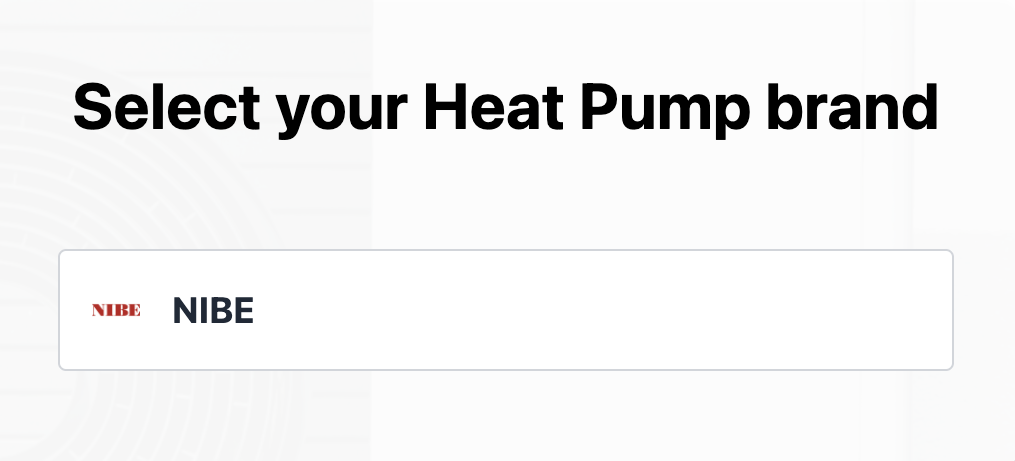 Redirect your user to the `authentication_url` received in the response to start the onboarding flow.
### Step 4: Whitelabel Onboarding Form - Connect Device
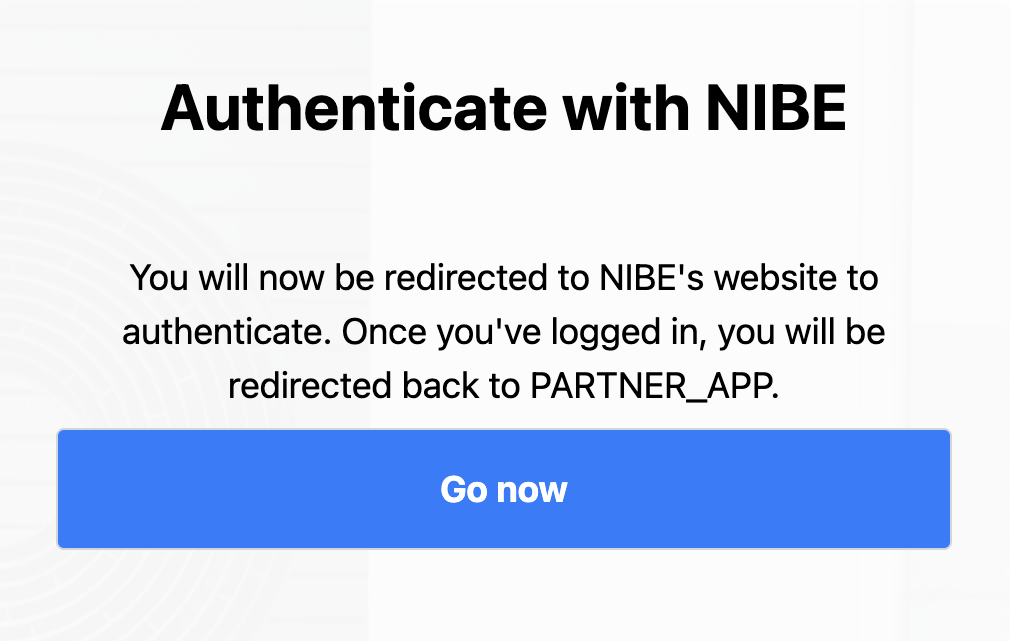
After selecting their device manufacturer, the end-user is prompted to connect their device. The user journey continues depending on the device manufacturer:
#### Option A: OAuth Redirect
The end-user is redirected to the manufacturer's authentication webpage (e.g., Nibe myUplink) for secure login.
Redirect your user to the `authentication_url` received in the response to start the onboarding flow.
### Step 4: Whitelabel Onboarding Form - Connect Device
After selecting their device manufacturer, the end-user is prompted to connect their device. The user journey continues depending on the device manufacturer:
#### Option A: OAuth Redirect
The end-user is redirected to the manufacturer's authentication webpage (e.g., Nibe myUplink) for secure login.
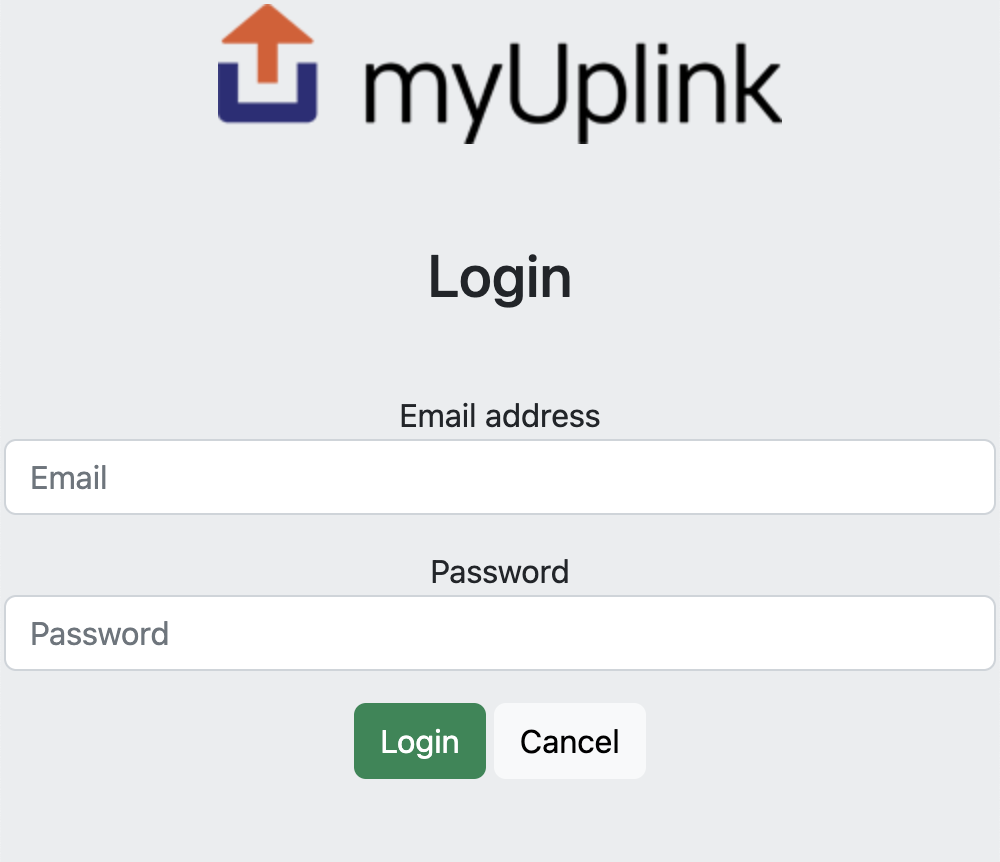
 #### Option B: Generic Login Screen
A generic login screen that calls the manufacturer's authentication API in the background (e.g., Tesla).
#### Option B: Generic Login Screen
A generic login screen that calls the manufacturer's authentication API in the background (e.g., Tesla).
 ### Step 5: Success and Redirect
The end-user sees a success page after completing the onboarding flow and is subsequently redirected back to your application.
### Step 5: Success and Redirect
The end-user sees a success page after completing the onboarding flow and is subsequently redirected back to your application.
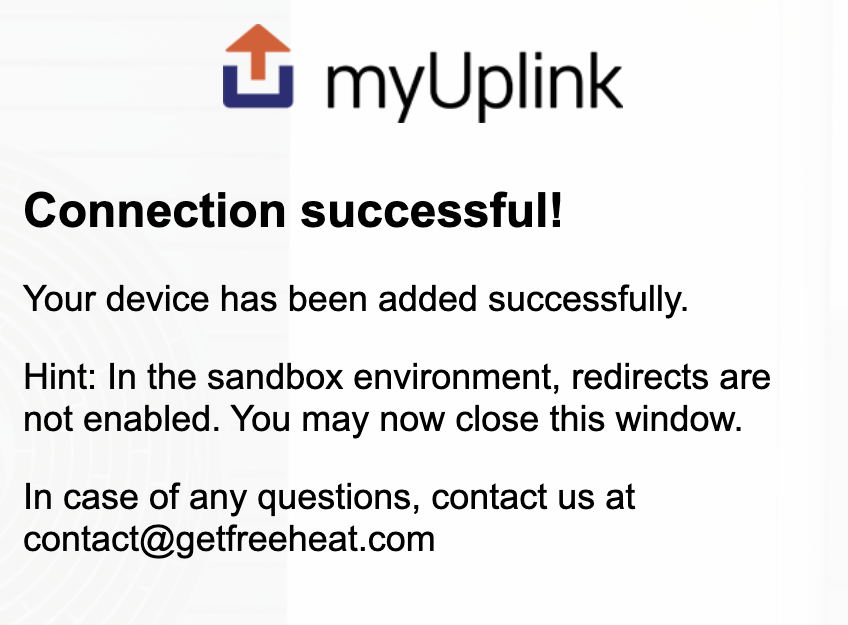 The redirect URL will include the device ID as a parameter:
```
https://yourapp.com/success?deviceId=8c6efd5a-36d2-4c3d-83a8-b7c9f39242cd
```
Store this `deviceId` for future API calls related to this device.
## Test Credentials
For testing the onboarding flow, you can use these demo credentials:
Please use sparingly to avoid rate limiting the test accounts.
* **Username:** `demomyuplink@nibe.se`
* **Password:** `Demo1234`
These credentials are only valid for testing and sandbox purposes.
* **Username:** `demo-tesla@getfreeheat.com`
* **Password:** `Demo1234`
These credentials are only valid for testing and sandbox purposes.
## Best Practices
* Keep the onboarding flow embedded within your app's user journey
* Provide clear instructions before redirecting to Connect UI
* Handle success and cancel callbacks gracefully
* Show loading states during the onboarding process
* Handle cancel\_url redirects (user abandoned onboarding)
* Implement retry mechanisms for failed device connections
* Provide user support options if onboarding fails
* Log onboarding session IDs for debugging
* Onboarding sessions expire after a certain period
* Don't reuse onboarding URLs across multiple users
* Create a new session for each onboarding attempt
## Next Steps
Configure device-specific preferences
Display device status and data to end-users
The redirect URL will include the device ID as a parameter:
```
https://yourapp.com/success?deviceId=8c6efd5a-36d2-4c3d-83a8-b7c9f39242cd
```
Store this `deviceId` for future API calls related to this device.
## Test Credentials
For testing the onboarding flow, you can use these demo credentials:
Please use sparingly to avoid rate limiting the test accounts.
* **Username:** `demomyuplink@nibe.se`
* **Password:** `Demo1234`
These credentials are only valid for testing and sandbox purposes.
* **Username:** `demo-tesla@getfreeheat.com`
* **Password:** `Demo1234`
These credentials are only valid for testing and sandbox purposes.
## Best Practices
* Keep the onboarding flow embedded within your app's user journey
* Provide clear instructions before redirecting to Connect UI
* Handle success and cancel callbacks gracefully
* Show loading states during the onboarding process
* Handle cancel\_url redirects (user abandoned onboarding)
* Implement retry mechanisms for failed device connections
* Provide user support options if onboarding fails
* Log onboarding session IDs for debugging
* Onboarding sessions expire after a certain period
* Don't reuse onboarding URLs across multiple users
* Create a new session for each onboarding attempt
## Next Steps
Configure device-specific preferences
Display device status and data to end-users